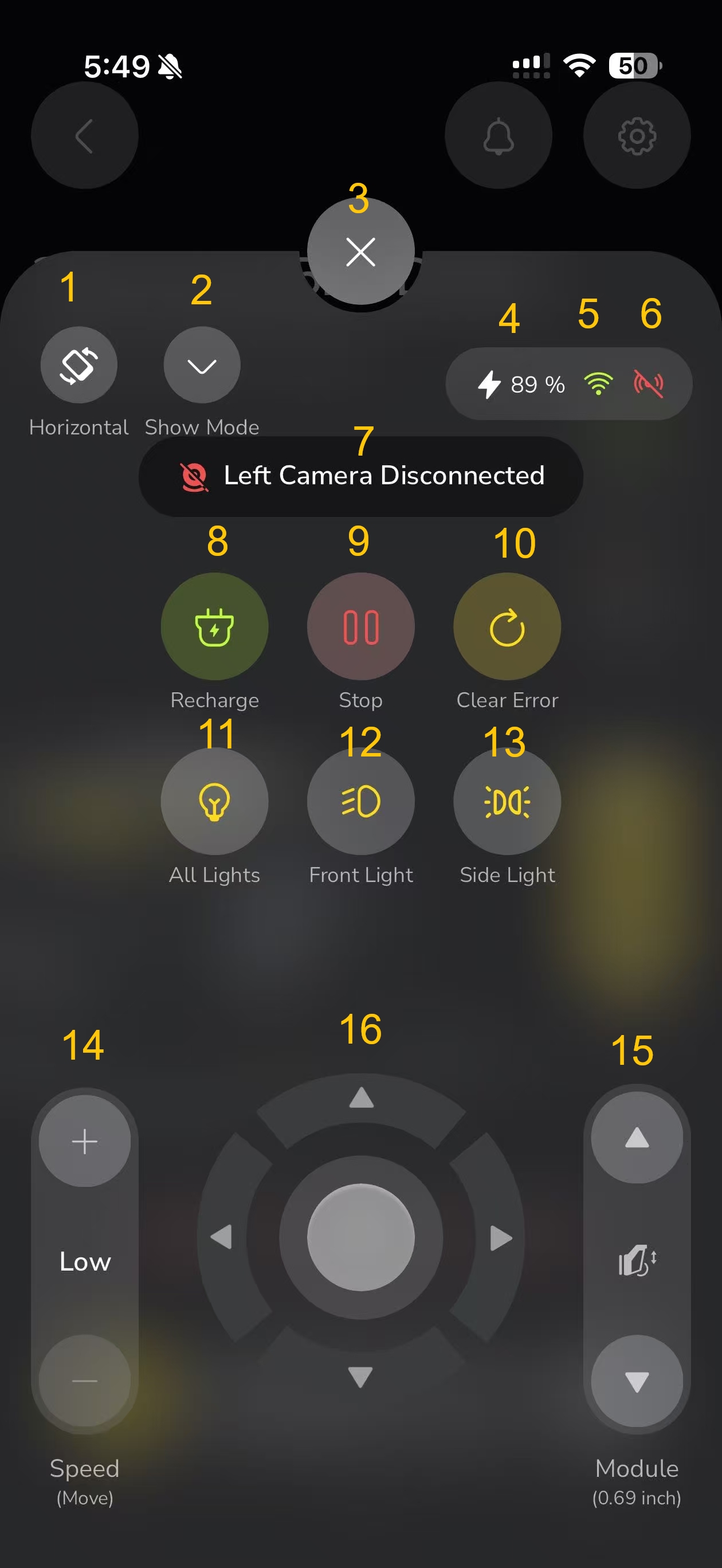
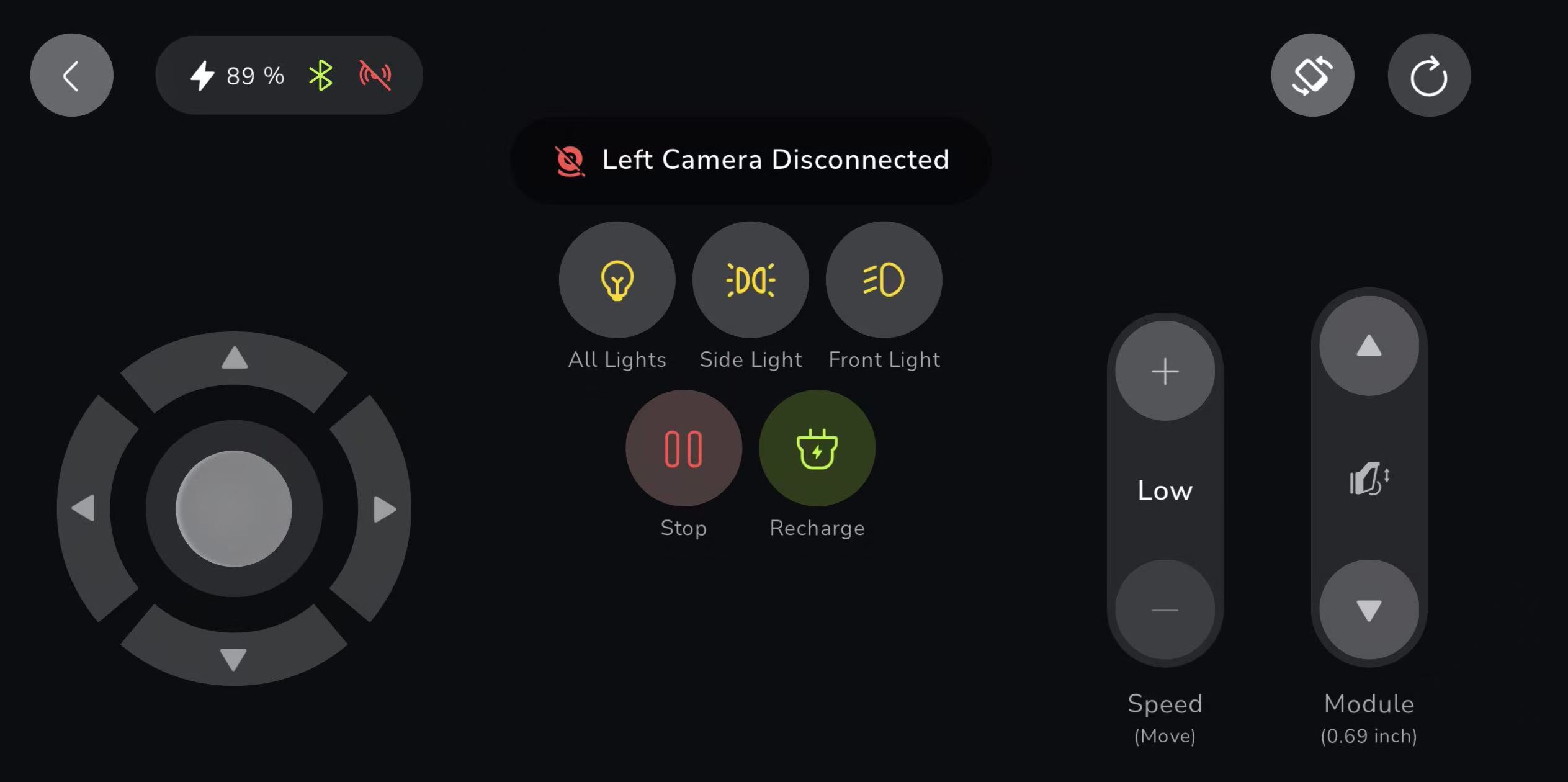
- Toggle Show Mode to switch the app controller to a mode designed for demonstration or when showing Yarbo’s capabilities without an active work plan.
- Use the Close button to exit the app controller when you’re done making adjustments.
- Displays the current battery level of Yarbo.
- Keep an eye on this indicator to know when it’s time to recharge.
- Displays the current network status, showing if Yarbo is connected and online.
- Shows the current GPS signal status for Yarbo, ensuring proper location tracking.
¶ 7. Error and Warning Display
- Displays current errors or warnings in Yarbo.
- This helps you identify and troubleshoot issues right away to keep Yarbo functioning smoothly.
- When Yarbo is within the working area, use the Recharge button to send Yarbo back to the Docking Station for recharging.
- Yarbo will navigate automatically to the Docking Station for efficient charging.
- The Stop button immediately halts Yarbo’s current work plan.
- Useful for emergency stops or when you need Yarbo to stop moving for safety reasons.
- Use the Clear Error button to clear any errors or warnings that Yarbo is displaying.
- This helps you quickly get back to working mode after resolving any issues.
- Turn on/off all lights on Yarbo, including:
- Front Light, Indicator Light, Side Light, and Rear Light.
- Use this feature to improve visibility when Yarbo is working in low-light conditions.
- Specifically controls the Front Light, allowing you to turn it on or off as needed.
- Use this button to turn on/off the Side Lights and Rear Light.
- Useful for additional visibility from the sides and rear of Yarbo.
- Adjust the speed of Yarbo while moving.
- Adjust SAM module's position on core.
¶ 16. Direction and Move Control
- Use the directional pad to control Yarbo’s walking direction and angle.
- This manual movement feature is helpful for navigating Yarbo to specific locations or making adjustments during a work plan.