¶ Local Map Backup
To manually save a map, follow these steps:
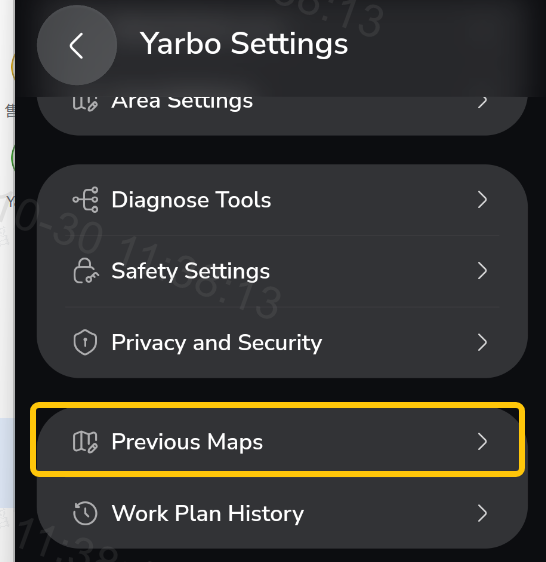
Yarbo Setting → Previous Map → Save Current Map
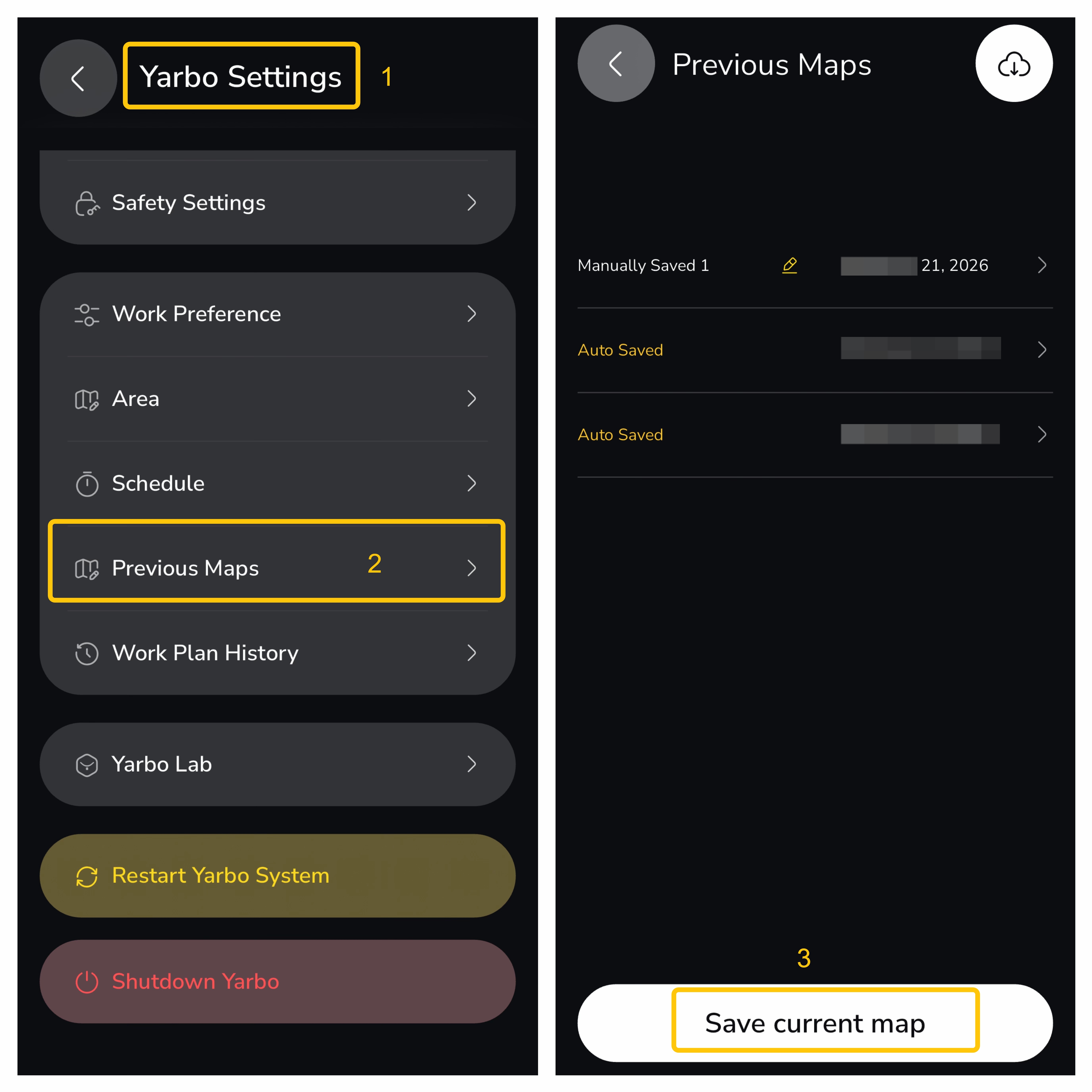
A maximum of 10 maps can be saved, and once this limit is reached, the oldest map will be automatically overwritten.
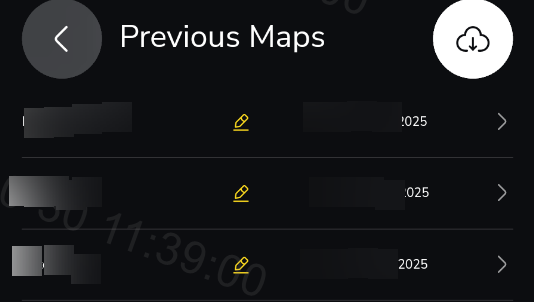
Additionally, saved maps can be renamed by clicking the "Pencil" icon.
¶ Cloud Backup
Your most recently modified map will be automatically synced and stored in the cloud backup.
This feature allows you to recover your map, ensuring your yard's layout is available for future use.
- Single Version Retention: Each Yarbo unit keeps one active cloud map at any given time. New backups overwrite older ones.
- Linked by Serial Number (SN): Every backup is tied to the specific Core’s serial number for accurate retrieval and version management.
📝 Note: Prerequisites for Cloud Map☁️
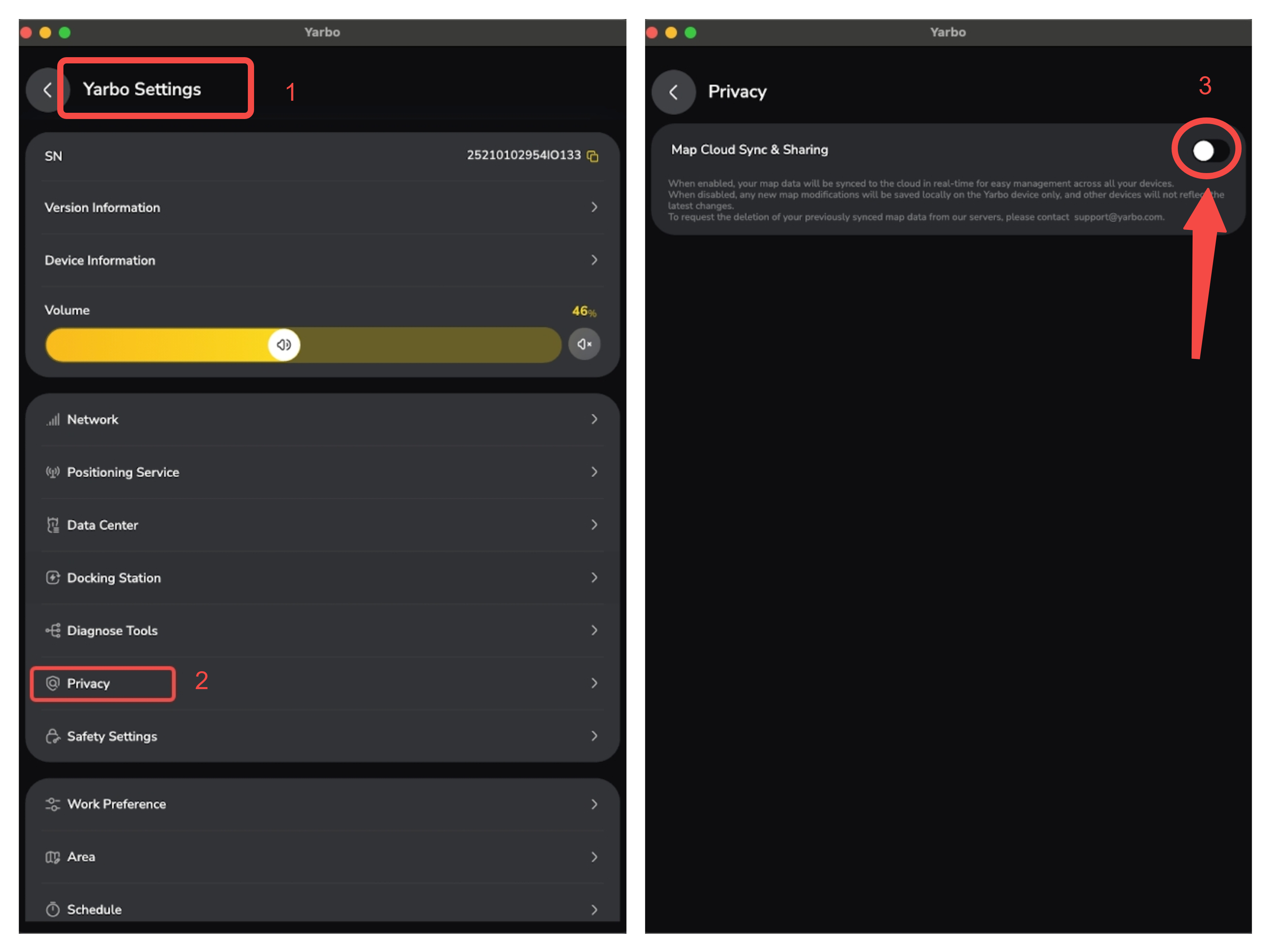
To use the Cloud Map feature, you must first grant permission in the App:
- Go to Yarbo Settings → Privacy.
- Toggle on Map Cloud Sync & Sharing.
(If this is turned off, the Cloud Map feature will not be available.)
¶ How to Recover a Map
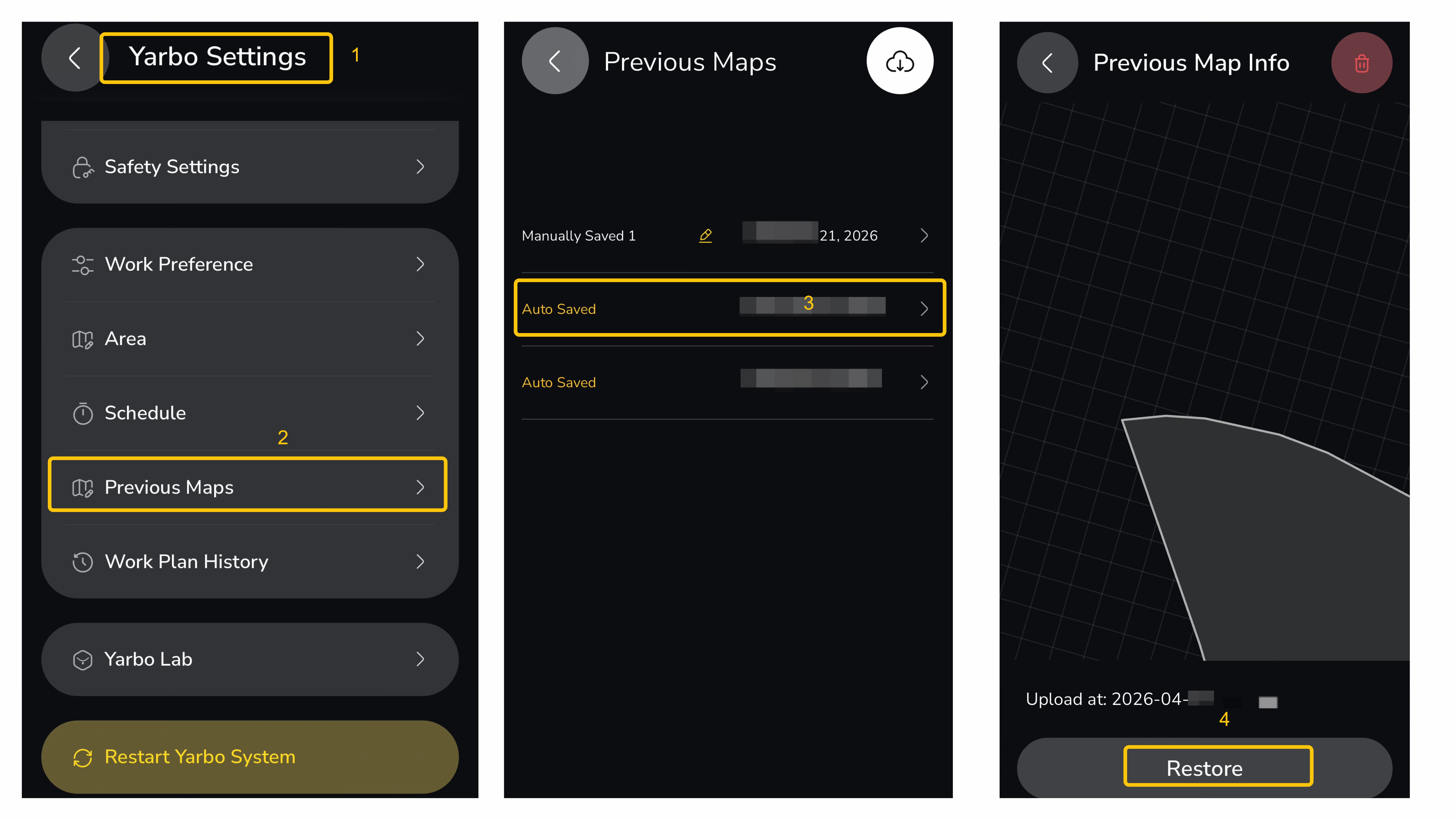
¶ Option 1: Restore Selected Local Map
Steps: Yarbo Setting → Previous Map → Selected Local Map → Restore
¶ Option 2: Restore Cloud Map
- Open the Yarbo App.
| Go to Settings → Previous Maps. |
 |
|
 |
¶ Tips & Notes
- Only the owner account (the Yarbo account originally paired with the device) can back up and recover maps.
- Shared user accounts cannot perform backup or recovery actions.
- Ensure Yarbo is powered on, connected to Wi-Fi or 4G, and online during backup or restoration.
- After recovery, you need to reset all area settings and work plans to ensure they are configured correctly for your new Core or setup.
¶ Data & Privacy
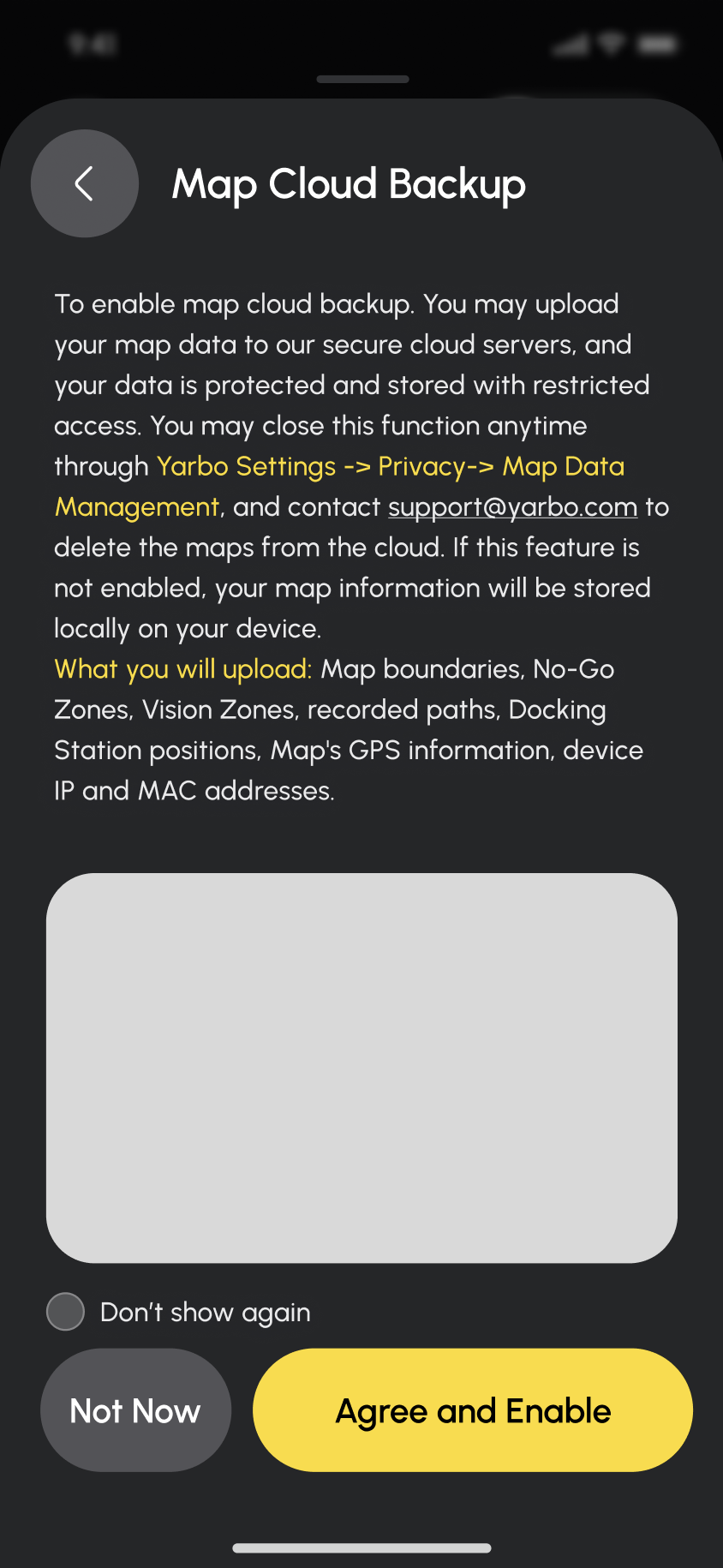
- Using Map Cloud Backup requires your consent to Yarbo's privacy notice.
- When enabled, your map data will be securely stored in Yarbo Cloud to support backup and restore.
- You may disable this feature at any time from:
- Yarbo Settings → Privacy → Map Data Management
- If you would like your cloud-stored maps to be permanently deleted, please contact support@yarbo.com.
- If Map Cloud Backup is disabled, your map information will remain stored locally on your device.