After launching the Yarbo App and logging into your account, you will arrive at the home page as shown in the image below.
¶ Description of Icons 1–4
|
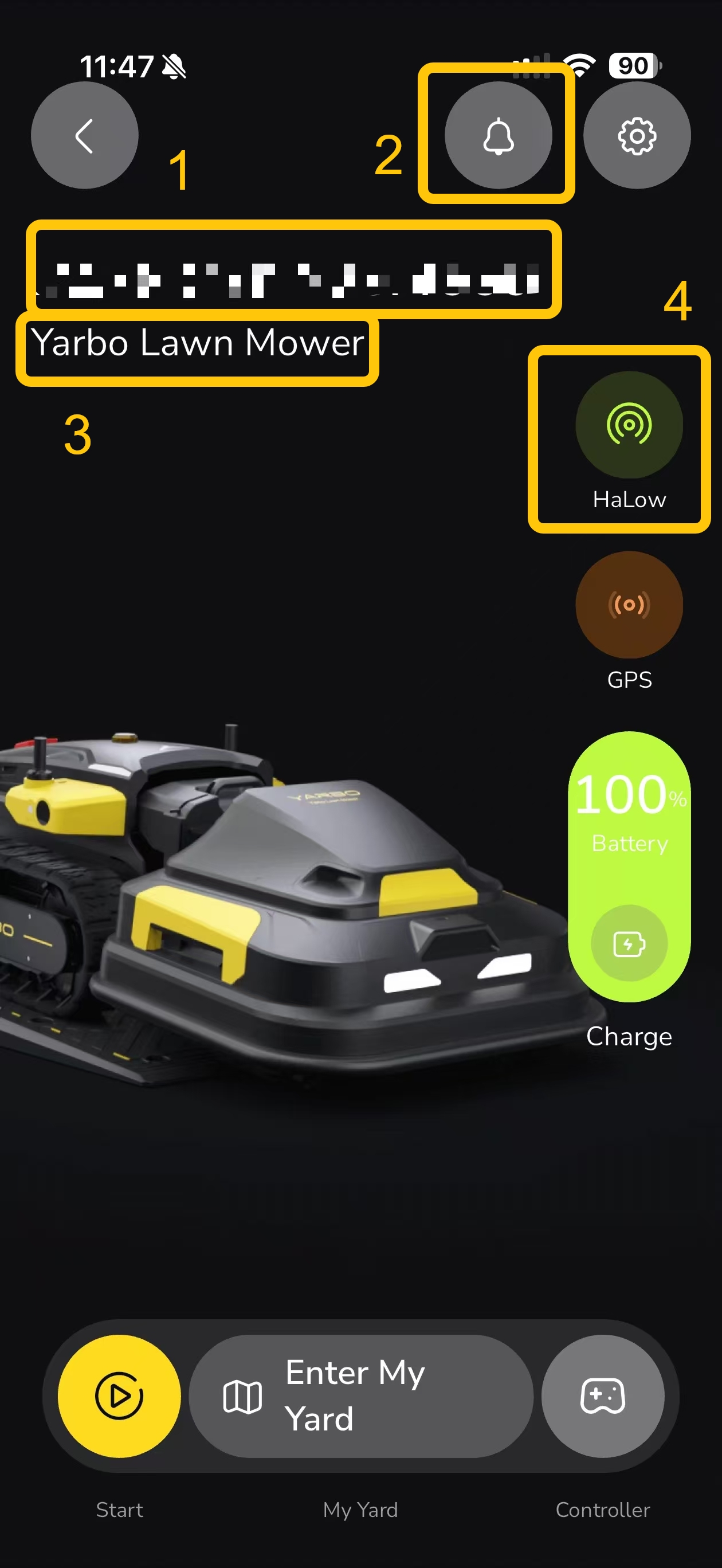 |
¶ 1. Device Name / SN (Serial Number)This refers to your device name or its Serial Number. By default, the device name is set as the SN, which is a unique identifier used to distinguish your Yarbo from other devices. You can also customize it anytime in Yarbo Settings to your own preferred Yarbo name. ¶ 2. NotificationYarbo allows you to customize which notifications you receive through the mobile app. If you'd like to turn off system notifications, general alerts, or error notifications, follow the steps here. ¶ 3. Connected Module InformationThis area displays the module currently connected to the Yarbo Core. In this example, the device is connected to the SAM module, and the trimmer is turned on. ¶ 4. Network Status IndicatorThe network icon shows the current connection status:
|
¶ Description of Icons 5-7
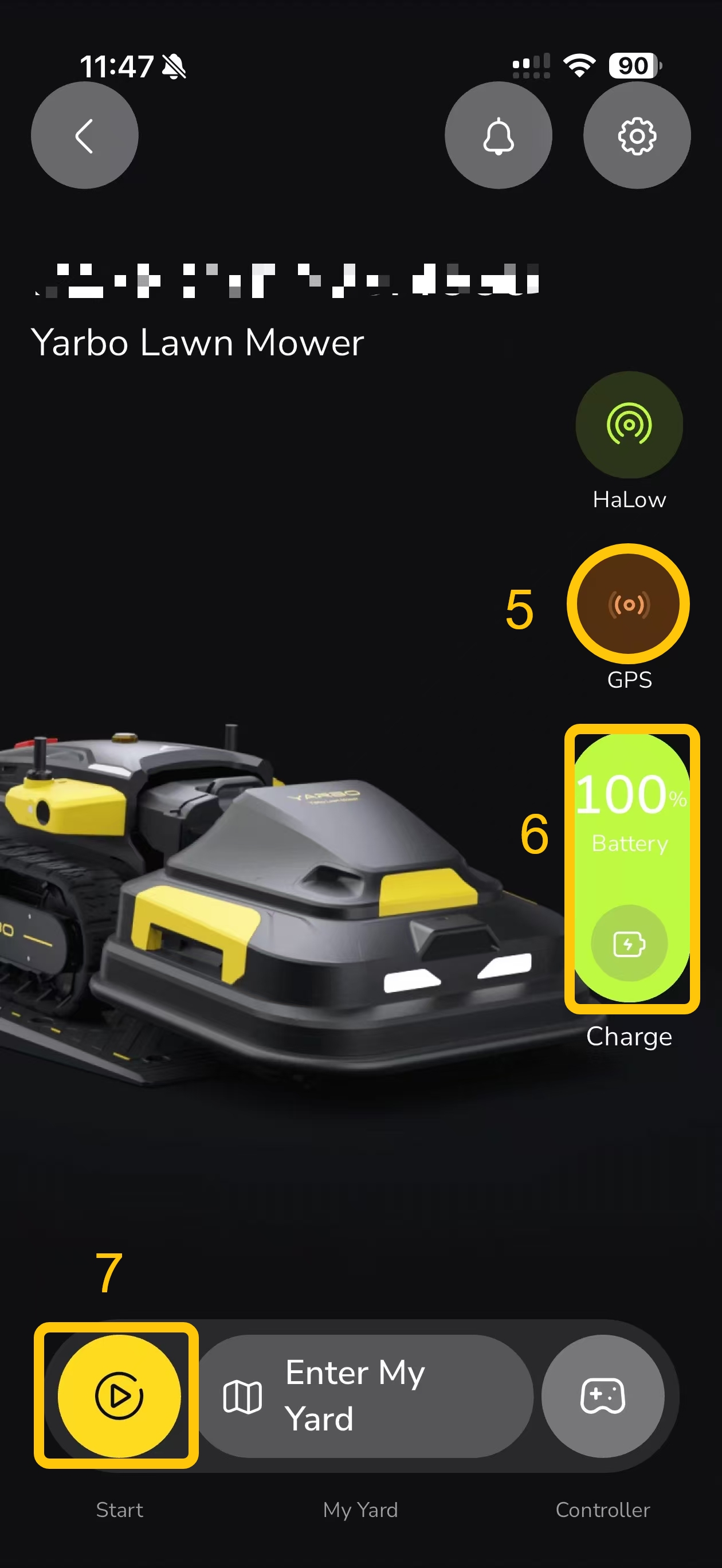 |
¶ 5. GPS Signal StatusThis icon indicates the current GPS signal condition:
¶ 6. Battery Status (Yarbo Core)This section shows the current battery level (e.g., 30%). When the status below reads “Charging”, the device is currently charging. You can also tap the icon to end charging manually.
¶ 7. Work Plan Start ButtonTap this button to creat or start a work plan. |
¶ Description of Icons 8-11
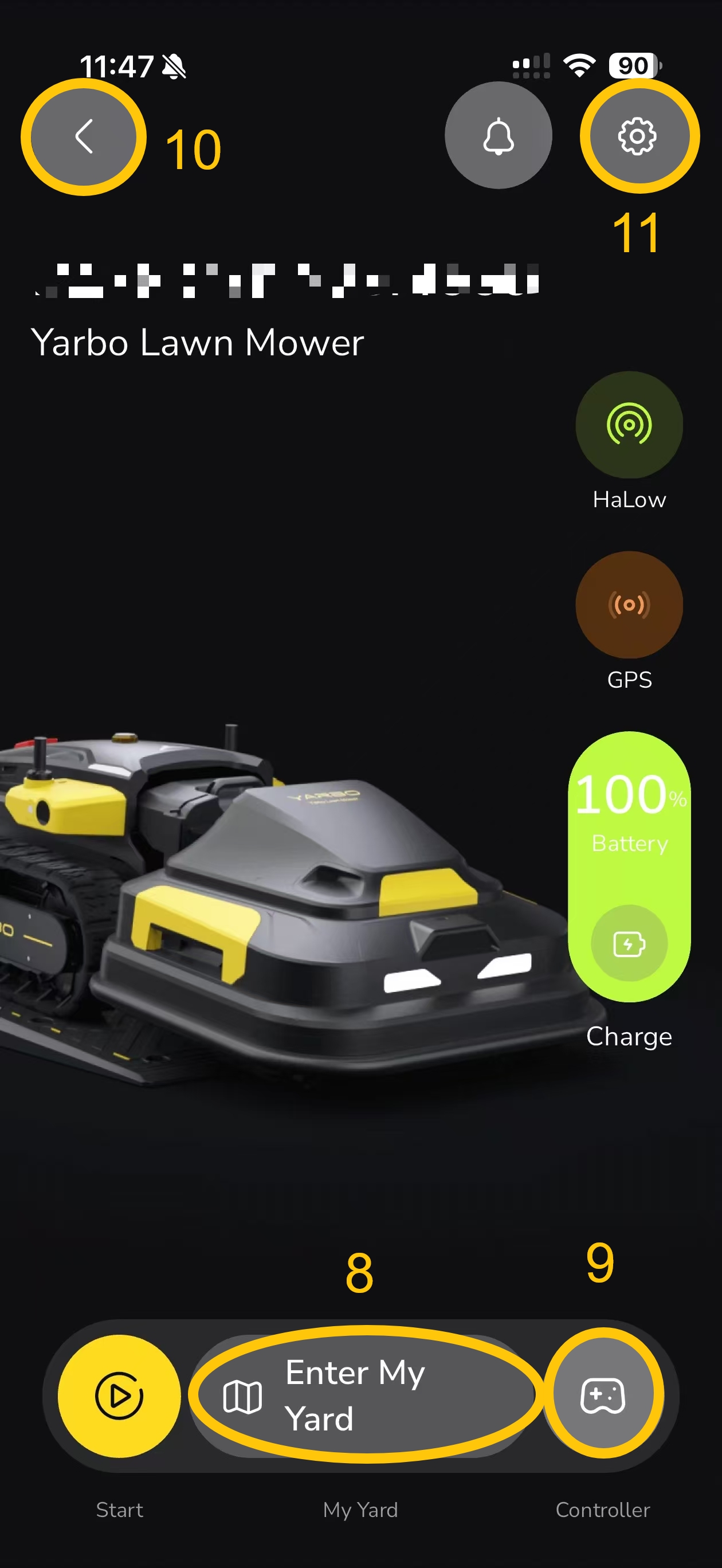 |
¶ 8. Enter My YardTap to access your yard page, where you can view and edit maps, use smart vision and controller function, as well as manage and schedule work plans. ¶ 9. App ControllerTap to open the app controller interface. This allows you to control Yarbo’s movement, adjust module angles, and manage lighting functions directly from your mobile device. ¶ 10. Back ButtonTap to return to the previous screen. ¶ 11. Settings EntryTap to open the Settings page, where you can view basic device information (such as SN and firmware version) and configure options including work preference, area settings, and safety settings.
|