¶ RTK Status section
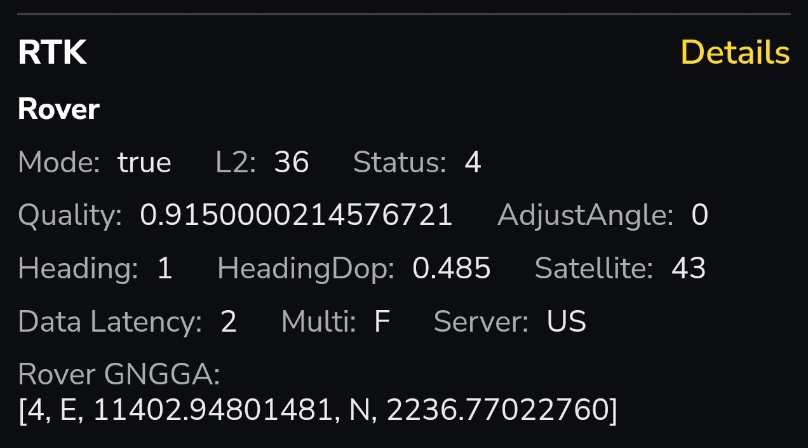
¶ Mode
- True means the Data Center or Public NTRIP has been initialized successfully. A True status is required before RTK can function properly, and RTK is also required for mapping.
- False means the Data Center (DC) or Public NTRIP has not been initialized successfully. You can first try tapping the Refresh button on the Diagnosis page and check again.
If the issue still persists, please keep the DC installed in the same physical location and perform Reinstall DC in the app.
¶ L2
Represents the number of shared satellites visible to both the left and right antennas.
You typically want this to be greater than 10 and ideally at least 15. The lower the number, the more likely you are to have a loss of GPS and the rover will pause. This is normal so that the rover can wait for a better signal and get a solid fix on its position. Usually it will resume on its own. If after 30 mins it doesn’t, you can move Yarbo out into the open and resume.
¶ Status
There are 4 possible Status values: 1 / 2 / 4 / 5
- 1: Yarbo has not started using or receiving RTCM data yet. This usually happens when Yarbo has just powered on, when the DC connection is interrupted, or when RTCM data is lost.
- 2: Yarbo is not receiving data from the Data Center (DC) or Public NTRIP.
- 4: RTK status is normal.
- 5: Positioning quality has decreased. This may indicate poor GPS signal on the left antenna or the base station.
When performing Correct Map Drift, please also make sure:
- Status = 4
- Quality > 0.6
¶ Quality
Quality represents the RTK positioning quality, with a value range from 0 to 1.0.
A value higher than 0.9 indicates high positioning quality.
¶ HeadingDop
The lower the number is to zero the better. Anything close to 2 is poor and over 2 is unusable.
At 2 the rover switches to internal sensors like the IMU and wheel odometers to try and compensate for loss/poor GPS. It can only compensate for so long and then it will pause and wait for a good RTK status (4).
The number is impacted by noise, reflections, absorption, etc of GPS signal. For instance, placing your docking station under the eves of your home and up against the foundation can cause the HDOP to be high and result in poor to no GPS conditions when docked or docking. Satellites are always moving along with a number of other environmental factors that can affect this.
It is normal for this number to fluctuate wildly, but generally you don’t want it to continually be near or above 2.
¶ Satellite
This value represents the number of shared satellites visible to both the Data Center (DC) and the left antenna of the Yarbo Rover.
This number isn’t important. As long as it is generally above 20, it is fine. L2 is the more important satellite count to pay attention to.
¶ Data Latency
Data Latency Indicates the time elapsed since the Rover last received valid RTCM data.
This should be 1-2 normally. Anything higher than that reboot the DC or the rover and see if it gets better. If not, reboot your home router. Anything more than 15 is unusable.
¶ Data Center Section
¶ Connection
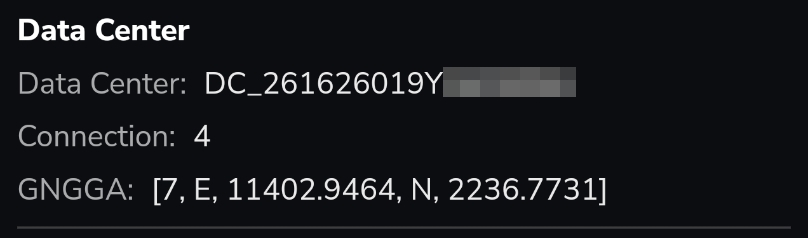
Connection has 5 possible status values: 0 / 1 / 2 / 3 / 4
It represents how RTCM data is transmitted from the Data Center (DC) to the Yarbo Core:
- 0 – RTCM data from the DC cannot be transmitted to the Yarbo Core.
- 1 – RTCM data is transmitted from the DC to the Yarbo Core through LoRa.
- 2 – RTCM data is transmitted from the DC to the Yarbo Core through NTRIP.
- 3 – RTCM data is transmitted from the DC to the Yarbo Core through the local HaLow network.
- 4 – RTCM data is provided through Public NTRIP.
Note: Normally, the status should display as 2. However, if it switches back and forth between 2 and 3, this is considered normal behavior. It means the DC is transmitting RTCM data through both the local network and NTRIP at the same time, while Yarbo automatically uses whichever RTCM data arrives fastest.
¶ Details
|
|
Click the yellow “Details” button to connect to your DC and put it into survey mode.
|
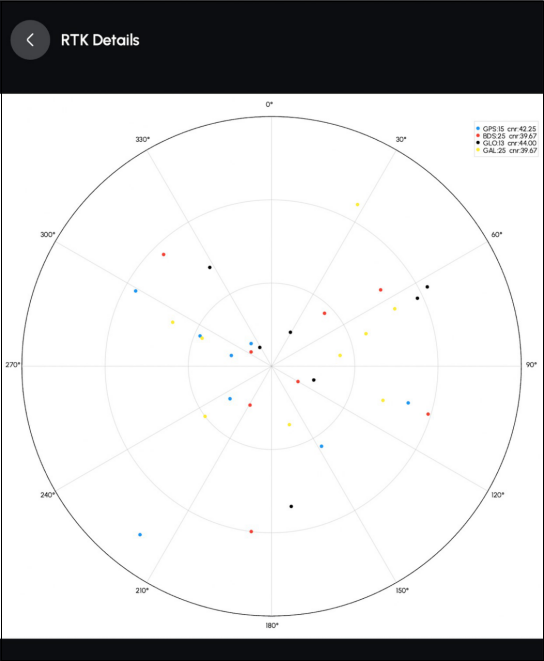 |
¶ CNR Score Below 37
¶ CNR Score Between 37 and 39
¶ CNR Score 40 or Above
|
¶ HaLow Section
¶ Connection
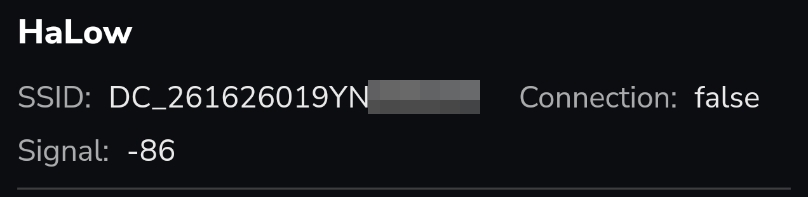
True is working normal. False indicates a problem and could be because the rover is out of range or the DC needs to be rebooted.
¶ Signal
The closer to zero the better the signal. Anything of -82 is unusable and if 4G (cellular) is enabled it will switch over to cellular or WiFi.
Although it is not recommended to use WiFi as HaLow has better range than most home WiFi setups and is specifically designed for use by Yarbo.