¶ Create and run trimmer paths for different areas
¶ Option 1: Trimming Edge
- Create paths along existing map boundaries or no-go zone edges. This works best for straight or longer edges.
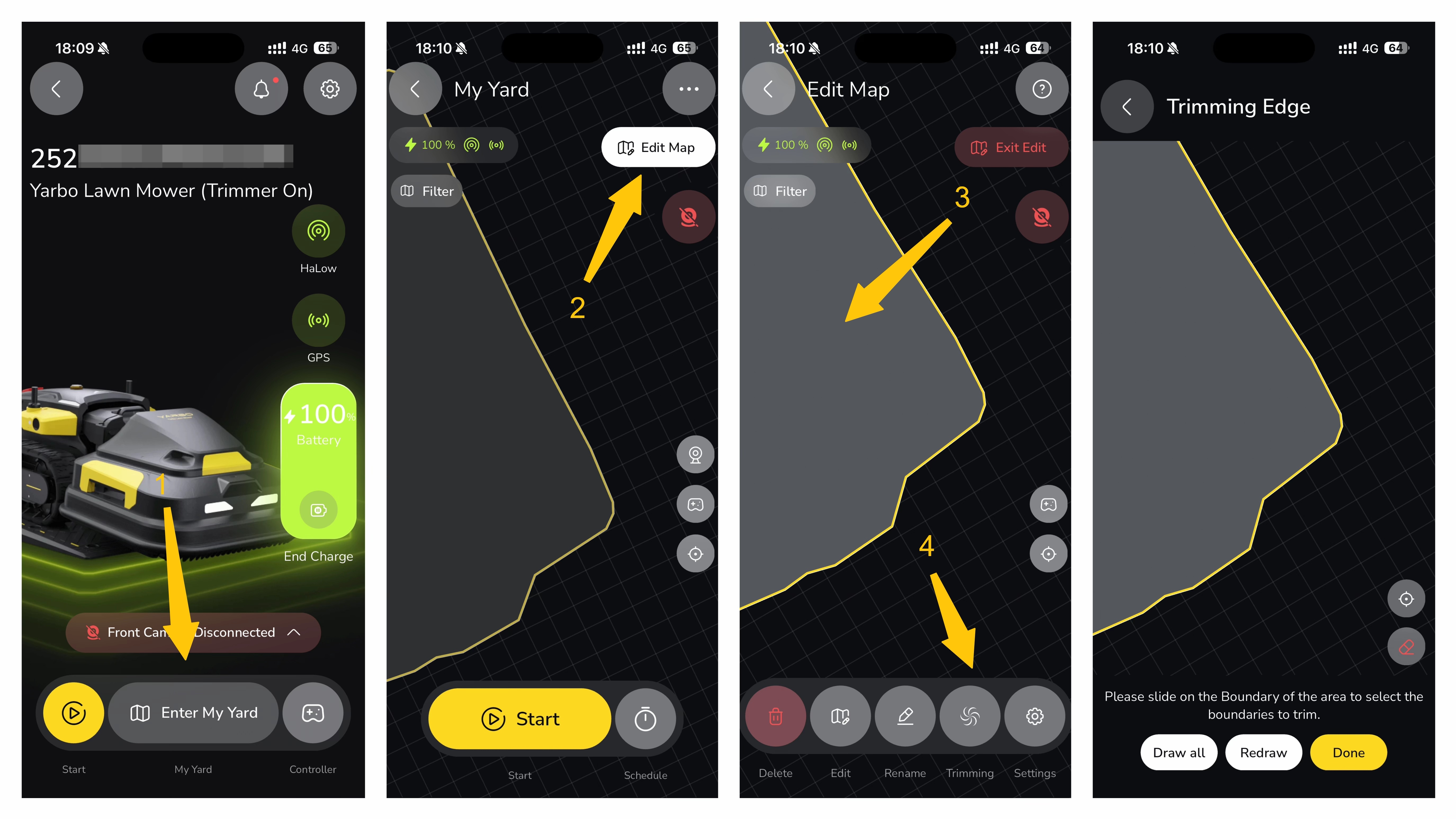
Setup Steps: “Enter My yard” → “Edit Map” → Tap the target area → Click “Trimming” Icon → Slide on the boundary of the area to select the boundaries to trim
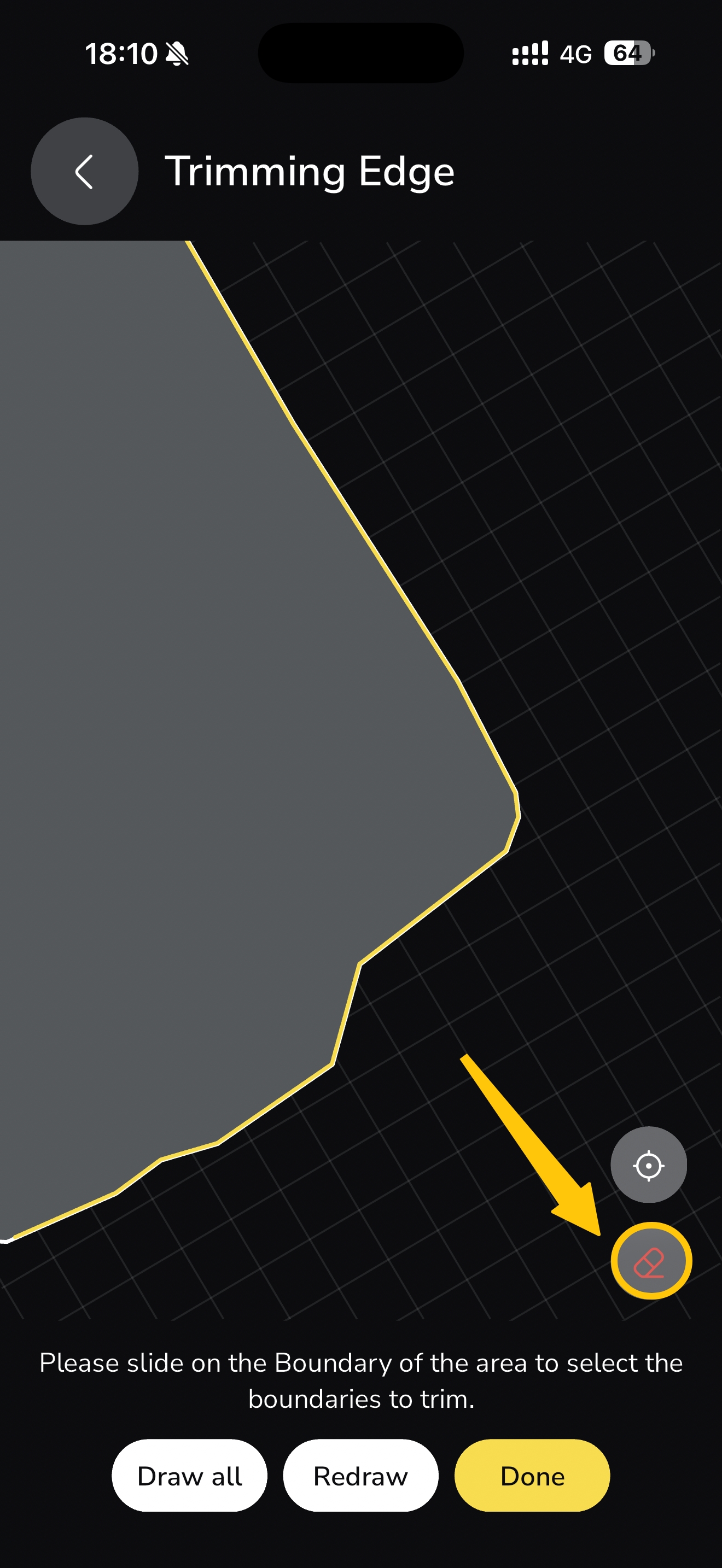
Tap the eraser icon, then tap the area where you want to remove the trimming edge.
¶ Option 2: Memory Path
- Manually drive Yarbo to record custom paths, which is ideal for irregular shapes or tighter areas.
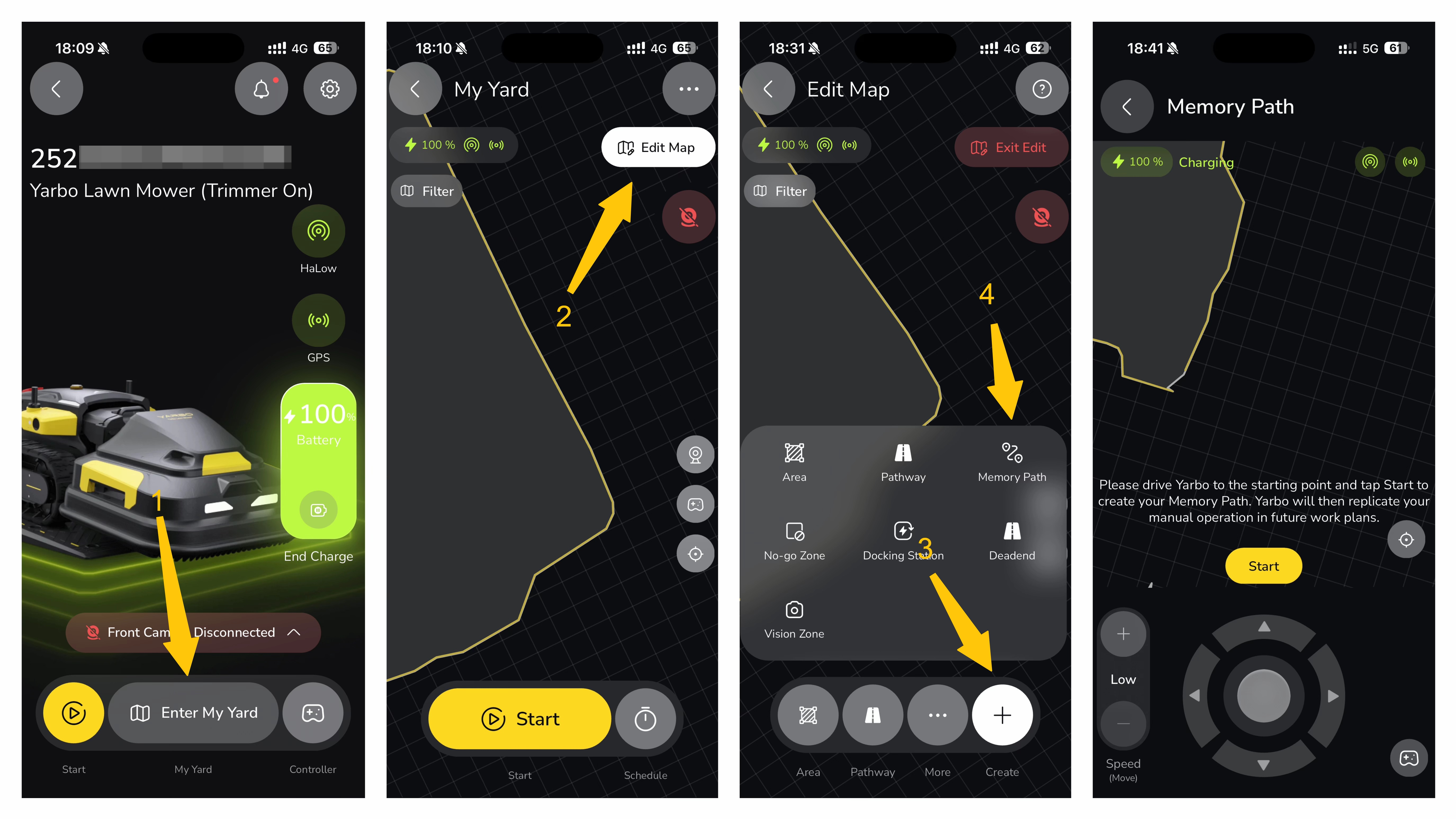
Setup Steps: “Enter My yard” → “Edit Map” →Click the "+"→ “Memory Path”
⚠️ Notes: Memory Paths cannot be created or saved if their start or end point is located inside a No-Go Zone or outside the Work Area.
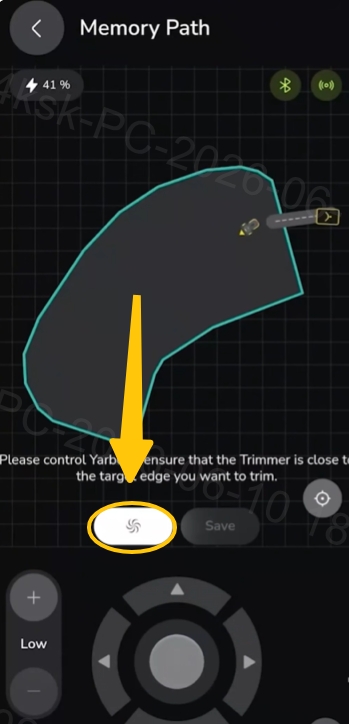
- Make sure this button is ON to record where you want to trim. If it's off, the memory path records but the trimmer won't run.
For detailed setup steps, please refer to: Yarbo Trimmer Installation + App Setup (video)
¶ Trimming Height
Currently, the trimming height can only be adjusted manually, not through the app. The supported height range is 2–4 inches (50–102 mm).
To adjust the height:
- Lift the trimmer arm, then gently rotate the multi-sided height adjustment knob (clockwise or counterclockwise) to set the cutting height to your desired level.
¶ ⚠️ Important Notes
- Using Memory Paths is recommended to improve efficiency and consistency.
- Small untrimmed areas may occur around circular or irregularly shaped No-Go Zones due to the shape of the trimming path and safety margins.
- Poor GPS/RTK signal quality may affect Memory Path accuracy. In areas with weak GPS coverage, the path may shift or deviate, which can result in incomplete trimming coverage.
- Minor boundary crossing may occur near walls, edges, or slopes. Depending on terrain conditions, the Core or Trimmer attachment may slightly extend beyond the planned path.
- A Perimeter Buffer of 4 inches is recommended (adjustable based on user preference). Setting the Perimeter Buffer to 0 inches may increase the risk of boundary crossing.
- Maintain a safety distance of at least 10 meters (33 ft) during operation. Always power off the machine before approaching it, and never touch the rotating trimmer line while the Trimmer is operating.
- When using the Trimmer, make sure the wired charging port cover is closed.
- When the Trimmer is not installed, make sure the rear power port cover is closed to help protect the electrical connectors from dirt, moisture, and debris.