¶ When to Use This Method
| If your Yarbo appears to be offline and isn't connecting to the network normally, you may need to set up its Wi-Fi connection through Bluetooth instead. This guide walks you through the process step by step. |
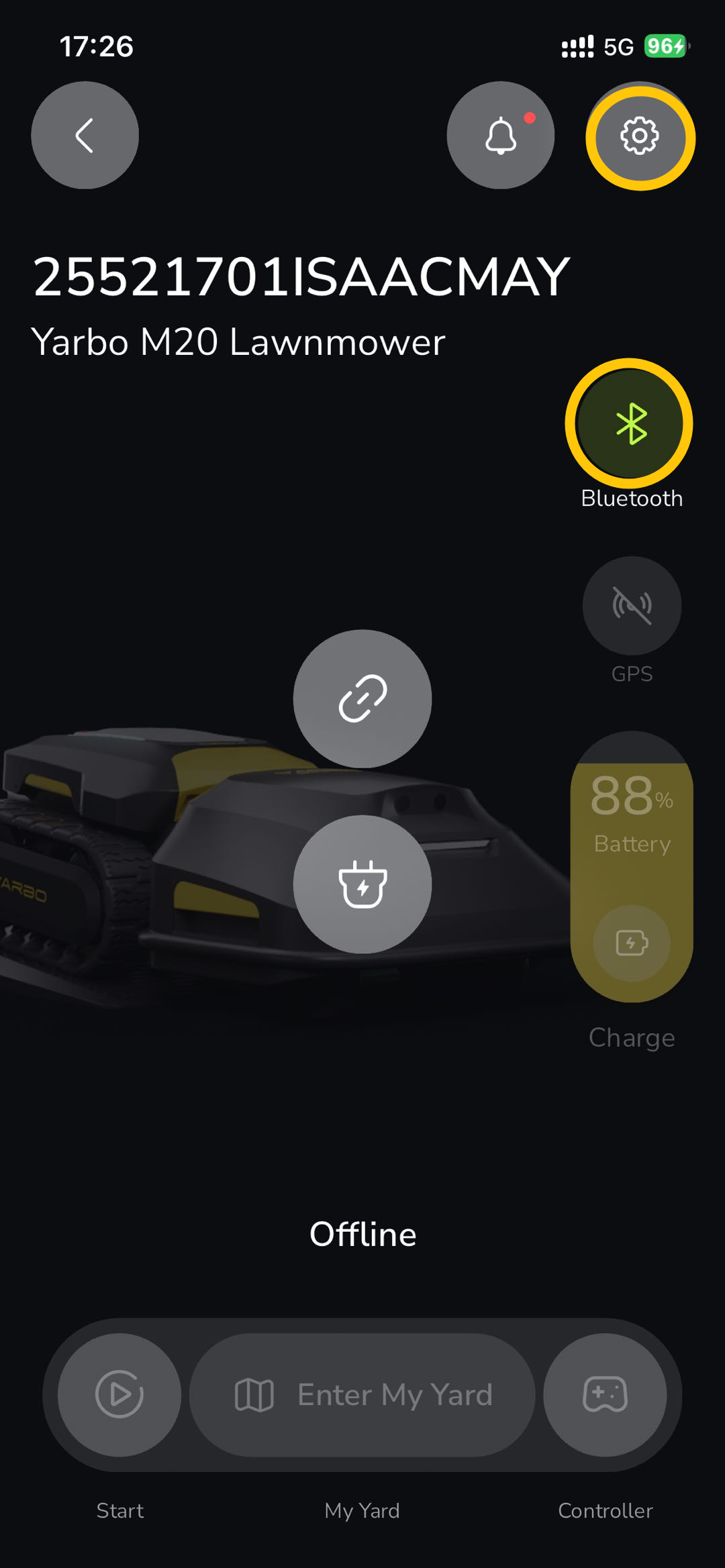 |
Important: This method only works for Yarbo machines from 2024 or later. If you have a 2023 model, please use the Hotspot mode to configure Wi-Fi instead.
¶ Before You Start
Make sure your Yarbo is already bound to your account in the Yarbo app. If you haven't bound the machine yet, please complete the binding process first.
Binding does not require an internet connection on the machine, so you can do this even when Yarbo is offline.
¶ What You'll Need
- Your phone with the Yarbo app installed
- Your home Wi-Fi network name and password
- Bluetooth enabled on your phone
- You should be close to your Yarbo (within a few meters) so Bluetooth can connect
¶ Step-by-Step Setup
¶ Step 1: Enter the Device Home Page
|
|
 |
 |
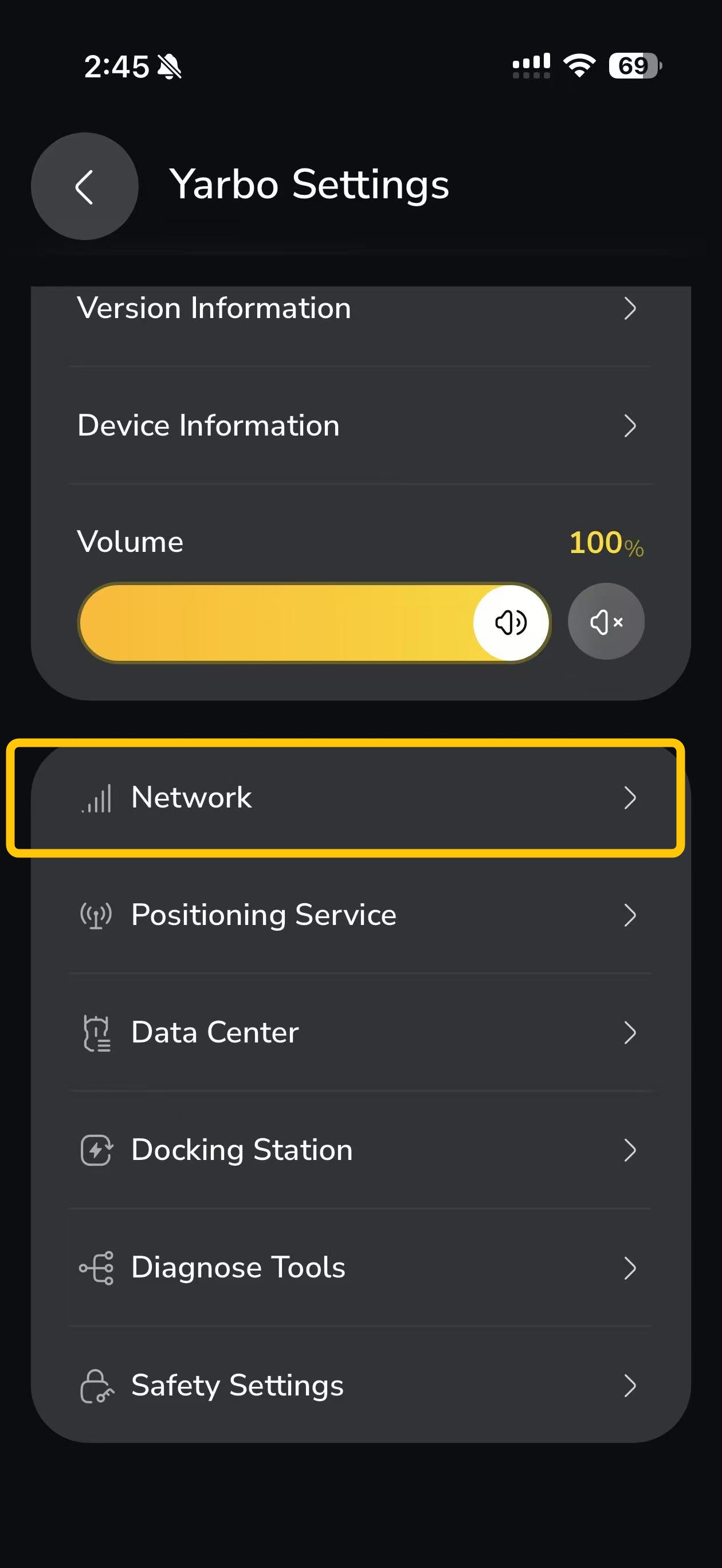
Once Bluetooth is connected:
- Open the Yarbo app on your phone
- Select your device to enter the main page
- Tap the Settings icon in the top-right corner
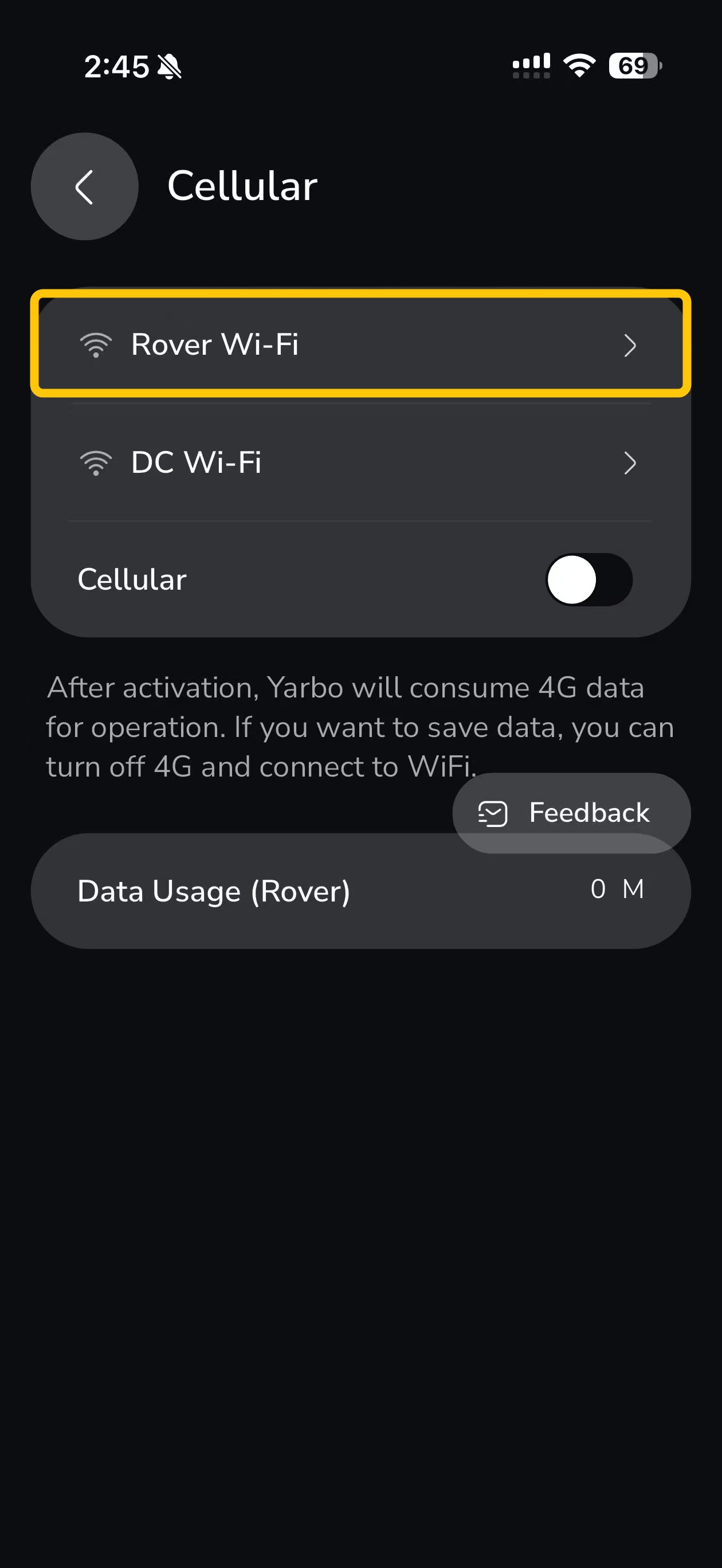
- Select Network
- Find and tap Rover Wi-Fi
Tip: If Bluetooth doesn't connect right away, make sure:
- Bluetooth is turned on in your phone settings
- You're standing close to the Yarbo
- The Yarbo is powered on
¶ Step 2: Set Up the Wi-Fi Network
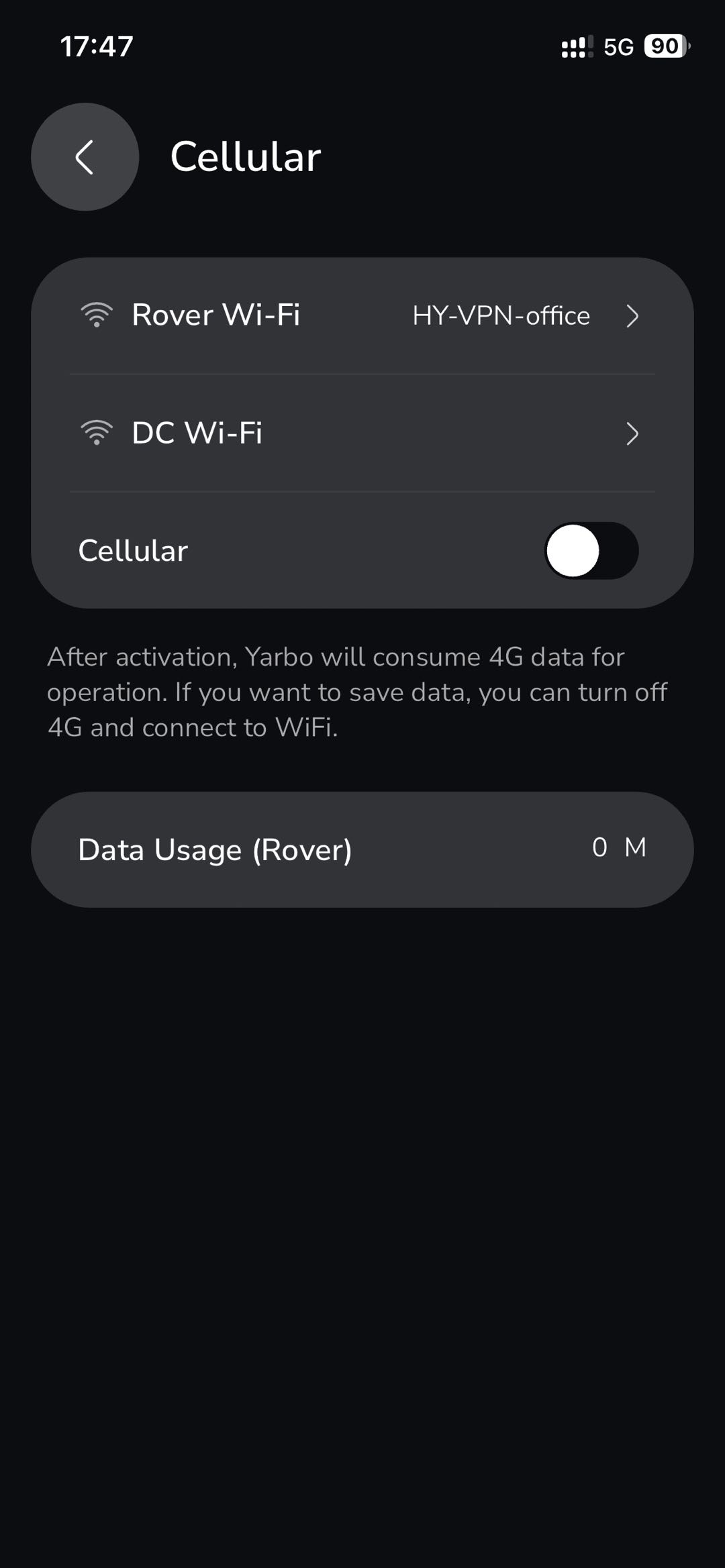
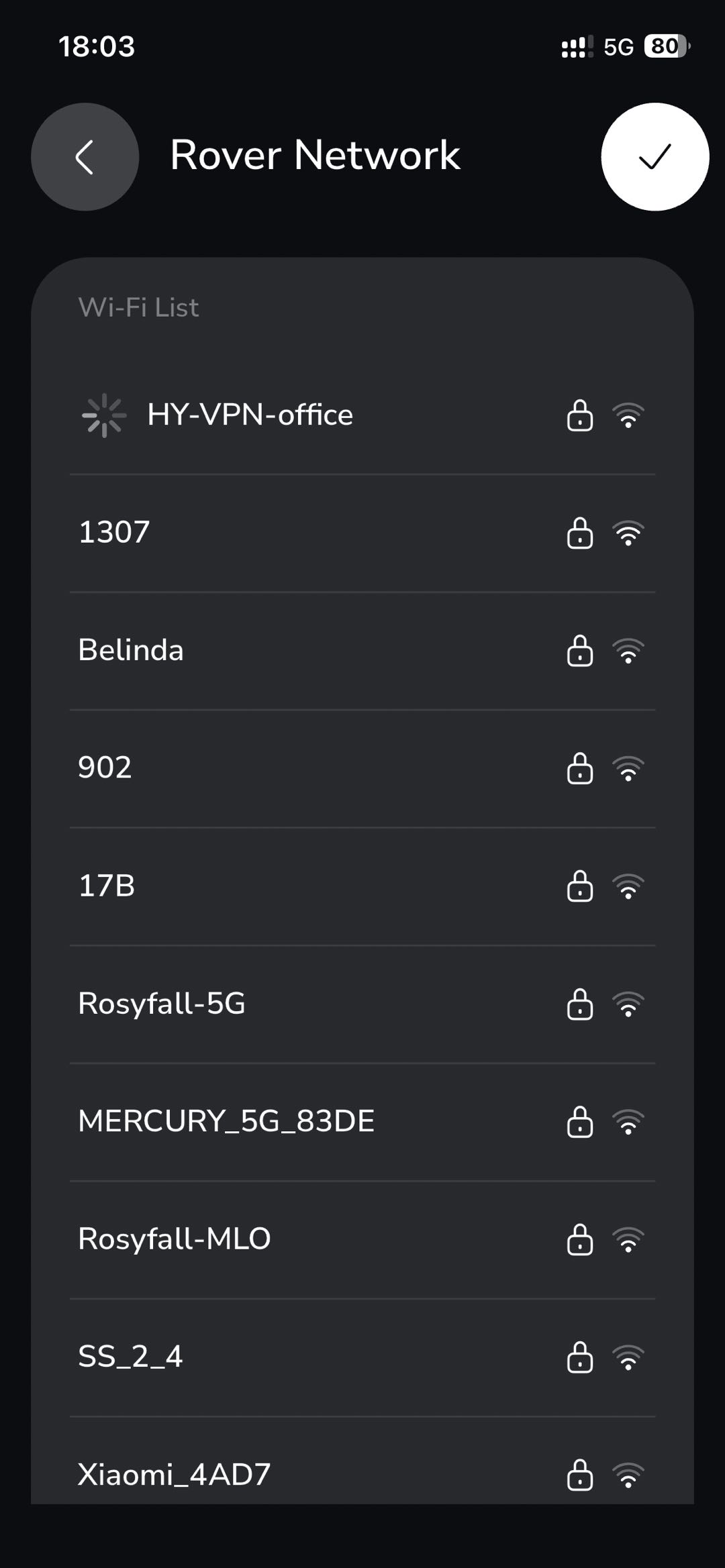
Follow the normal Wi-Fi setup flow:
- Yarbo will scan and display a list of available Wi-Fi networks nearby
- Select your home Wi-Fi network from the list
- Enter your Wi-Fi password
- Confirm and wait for the connection to complete
 |
 |
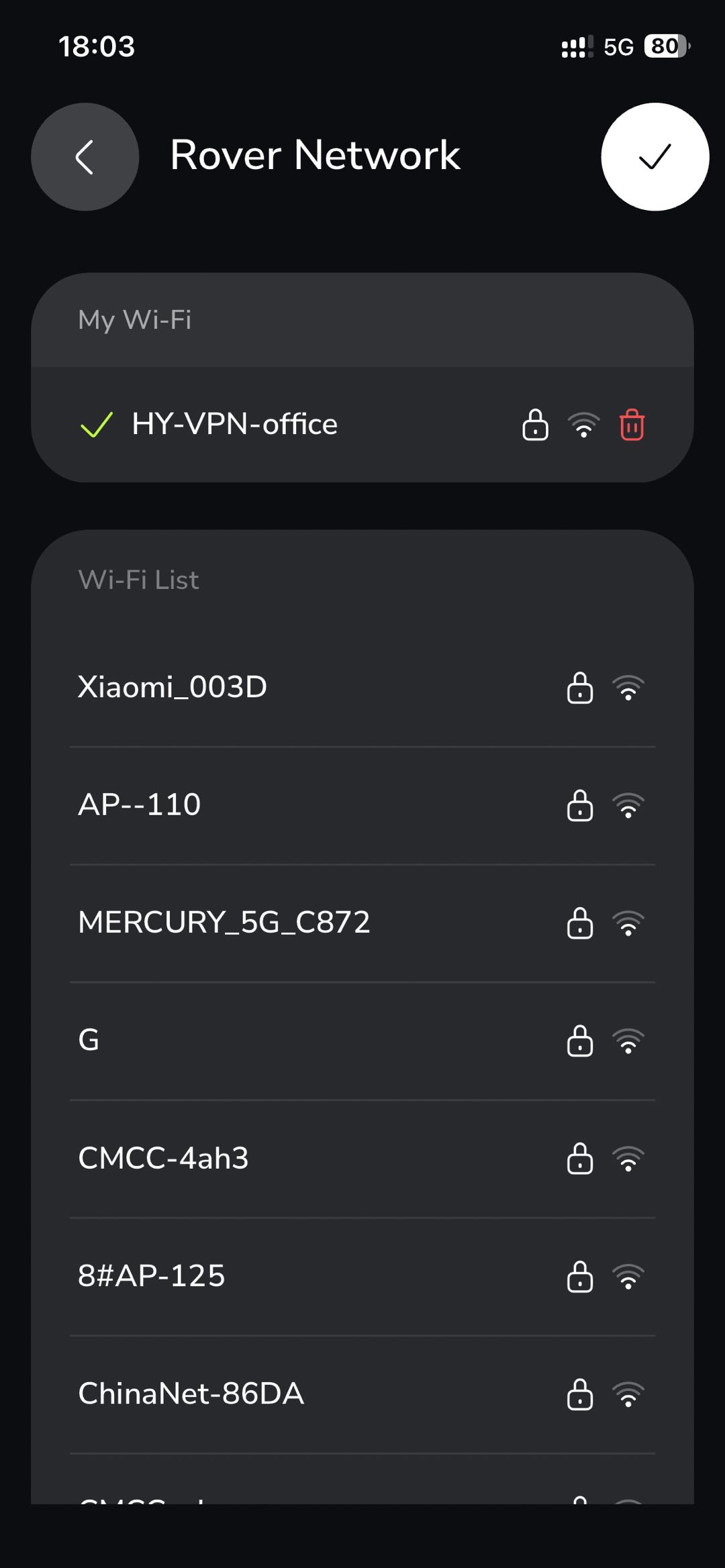 |
Once connected, your Yarbo should come back online in the app.
¶ Bluetooth won't connect
If Bluetooth doesn't connect automatically when you open My Yard, try these steps in order:
¶ Check the basics first
- Make sure your Yarbo is powered on
- Confirm Bluetooth is enabled on your phone
- Move closer to the Yarbo (within a few meters)
- Confirm the Yarbo app has Bluetooth permission in your phone settings
¶ If the Yarbo still doesn't appear in the scan list
If your Yarbo doesn't show up even on the manual scan page, please contact Yarbo Support via support@yarbo.com for further assistance. They can help diagnose whether the issue requires service or replacement.