¶ Firmware 3.13.0 Update: Correction Prerequisites
Starting from Firmware 3.13.0, Correct Map Drift can be performed when both conditions are met:
- RTK status = 4 (Check on the Diagnosis page)
- Yarbo is on the Docking Station (Charging is not required)
Before performing Correct Map Drift, please ensure that the required conditions are met. After rebooting the unit, allow the system up to 30 minutes to detect and confirm any map drift before proceeding.
¶ Case 1: Switching Between Data Center and NetRTK
When switching between Data Center and NetRTK in the same location, please manually perform Correct Map Drift before starting a work plan. This applies to both directions:
- NetRTK→ Data Center
- Data Center → NetRTK
How to access it:
- Open the Yarbo App → My Yard → tap the three-dot icon in the upper-right corner → Correct Map Drift
This process is only for switching RTK correction sources in the same location. If you are switching to a new location, please refer to the separate article for that scenario.
¶ Case 2: Regular Use
⚠️ Important: Please only use Correct Map Drift when a Map Drift error appears in the app.

A Map Drift error may appear when Yarbo is charging under good GPS conditions, but the system detects that Yarbo’s current charging position does not match the Docking Station location recorded on the existing map.
This usually means the mapped reference position and Yarbo’s actual charging position are no longer aligned. Please follow the instructions below based on your specific situation.
¶ Data Center and Docking Station have not been moved
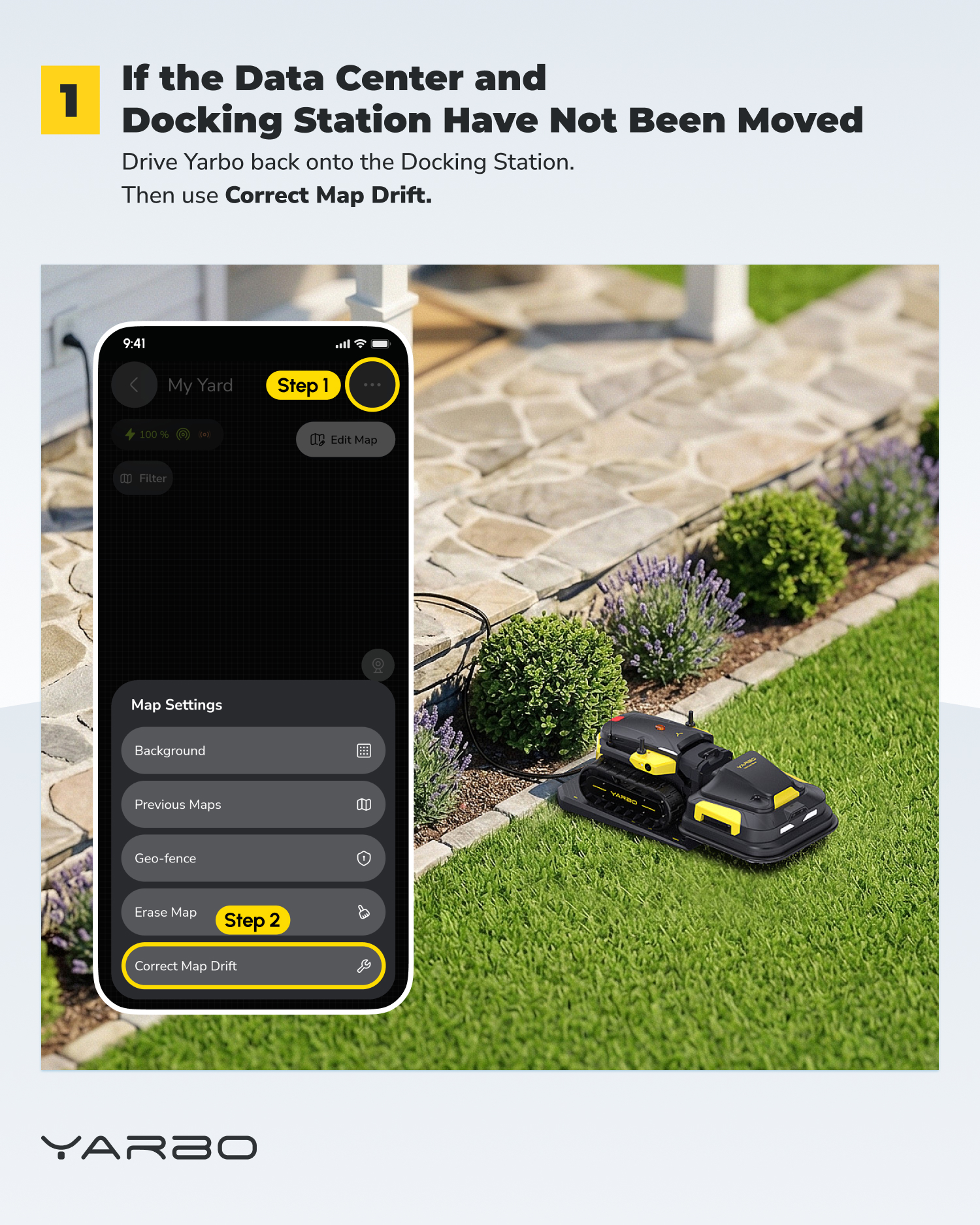
- If neither the Data Center nor the Docking Station has been moved, please drive Yarbo back onto the Docking Station first.
- Once Yarbo is properly positioned on the Docking Station, use Correct Map Drift in the app.
¶ Docking Station has been moved
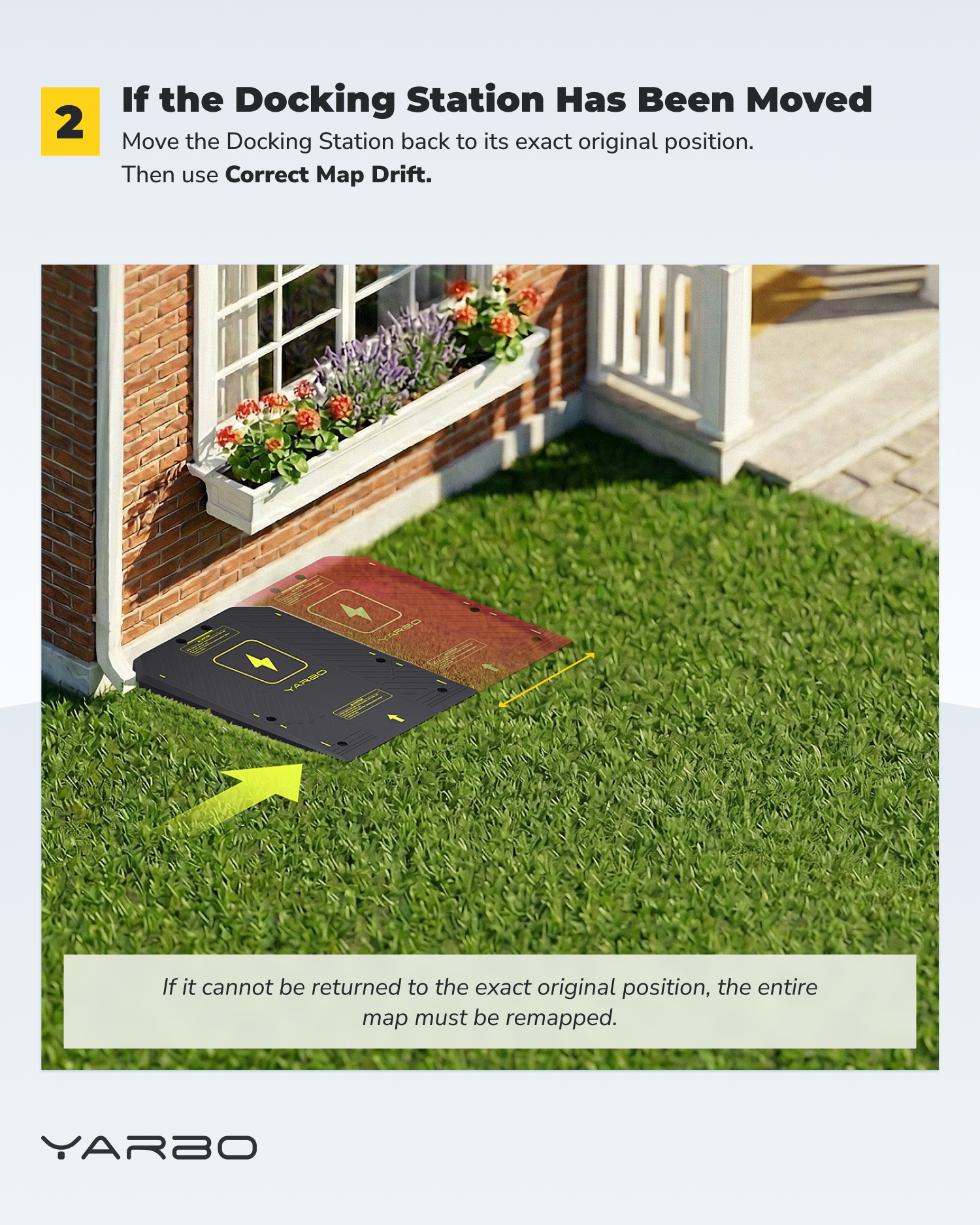
- If the Docking Station has been moved, please move it back to the exact original position recorded on the map, then use Correct Map Drift.
- The Docking Station position is part of the mapped reference system. Even a small position change may cause Yarbo’s charging location to no longer match the original map.
- If the Docking Station cannot be returned to its exact original position, the entire map needs to be remapped.
¶ Data Center has been moved
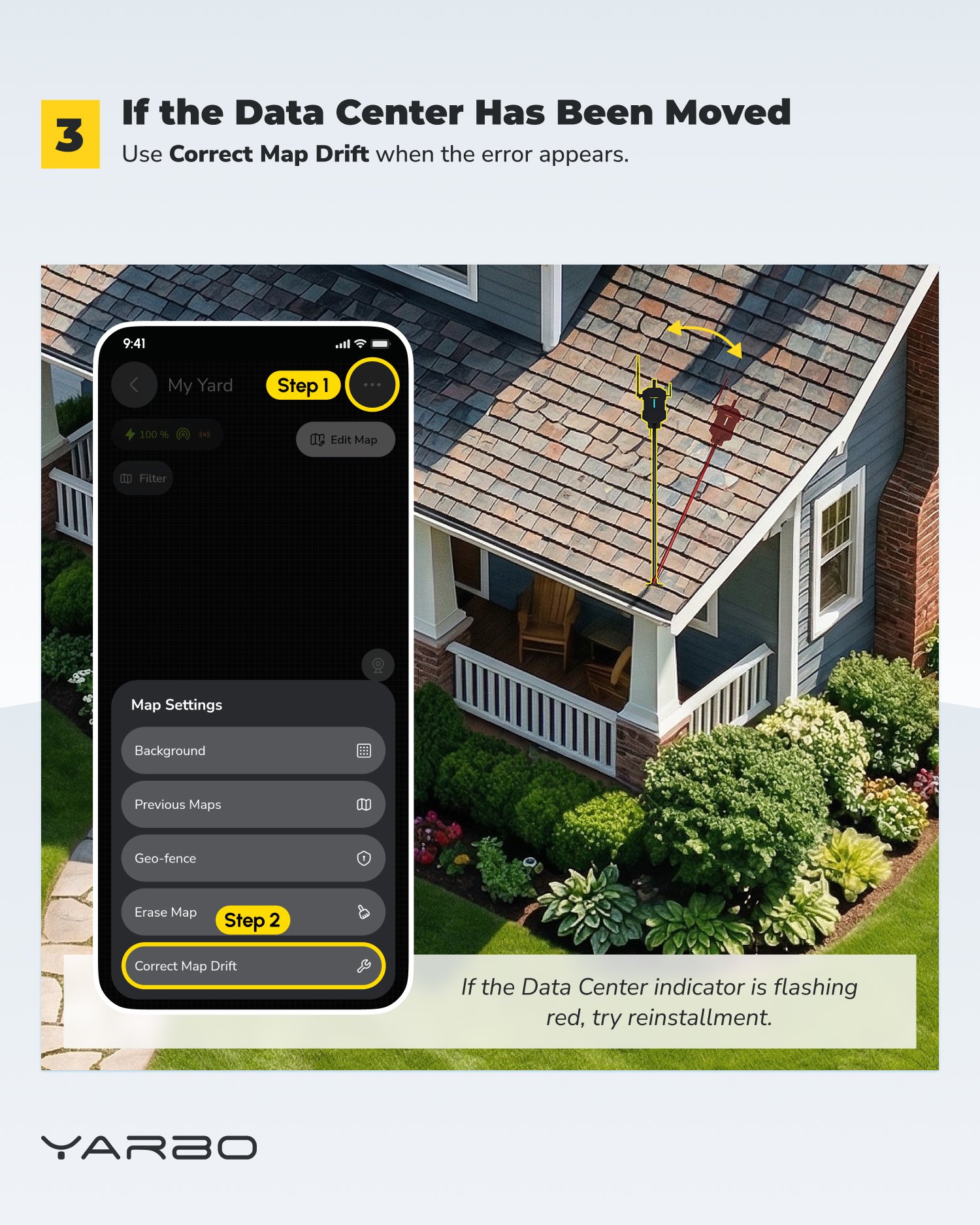
- If the Data Center has been moved, please wait until the Map Drift error appears in the app, then use Correct Map Drift.
- If the Data Center indicator is flashing red, please try reinstalling the Data Center first.
- After reinstalling, make sure the Data Center has a stable position and a clear sky view before using Yarbo again.